What Is an Administrator in WordPress?
An Administrator is the WordPress user role with access to all administration features on a single site: publishing and editing any content, managing themes and plugins, changing settings, and creating or deleting users. WordPress creates the first Administrator account automatically during installation; on multisite networks, only the Super Admin outranks it.
More About Administrators
What an Administrator can do
An Administrator holds every capability WordPress offers on a single site. Some of those overlap with the Editor role:
- Publish, edit, and delete anyone’s posts and pages
- Moderate comments
- Upload files and manage categories
The rest belong to Administrators alone:
- Install, activate, update, and delete plugins and themes
- Update WordPress core
- Add, edit, and remove users
- Change site settings (the manage_options capability)
- Edit theme and plugin files
- Export and import content
- Customize the site’s design in the Site Editor (block themes) or the Customizer (classic themes)
The full capability-by-role breakdown is in WordPress.org’s Roles and Capabilities documentation.
Where Administrator sits in the role hierarchy
Below Administrator in the WordPress user role hierarchy sit Editor, Author, Contributor, and Subscriber, each with fewer capabilities than the one before it. The only role above Administrator is the Super Admin, which exists only on multisite networks.
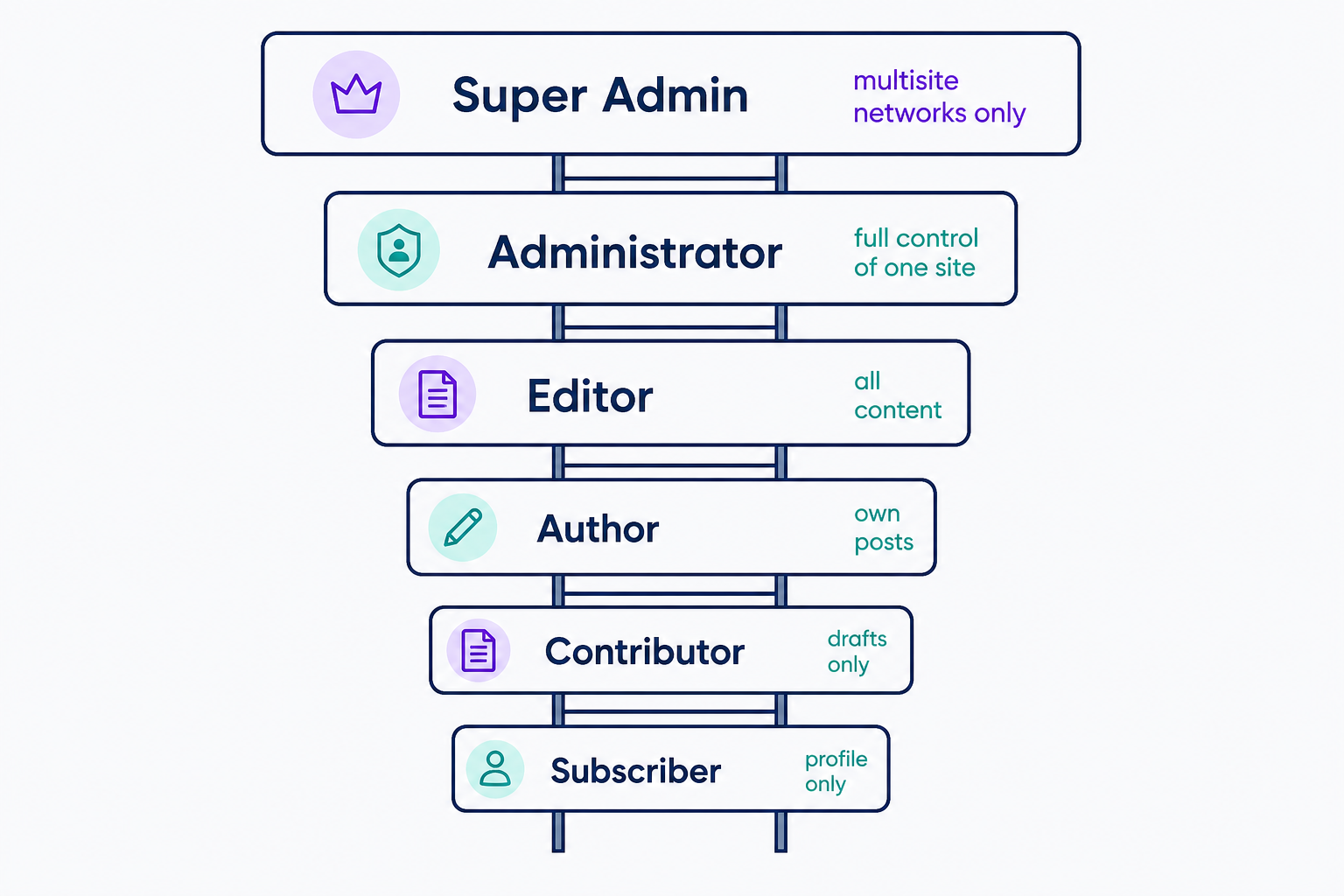
Multisite also shrinks the role itself. On a network, updating WordPress core, installing or deleting plugins and themes, and creating or editing user accounts are reserved for the Super Admin. A site Administrator can still activate plugins the Super Admin has installed, switch themes, change existing users’ roles, and manage content and settings, but can’t touch the software itself.
Administrator vs. Editor
An Editor controls content and nothing else: they can publish, edit, and delete anyone’s posts and pages and moderate comments, but they can’t install plugins or themes, change site settings, or manage users. Give Editor to anyone who only manages content; reserve Administrator for whoever maintains the site itself.
Keep Administrator accounts to a minimum
A site needs only one Administrator account, and it’s wise to keep the number of Administrators as low as possible. Every extra Administrator account can install code, edit files, and create more admins, so each one widens the damage a stolen password can do.
Audit your accounts under Users > All Users and demote anyone who only writes or edits content to Editor. For a role-by-role walkthrough, read our guide to WordPress user roles.
Frequently Asked Questions
- On a single site, go to Users > All Users, click the username, and switch the Role dropdown to Administrator, or create the account under Users > Add New; only an Administrator can do this. On multisite, only the Super Admin creates or edits accounts, though site Administrators can change roles.
- The attacker controls the whole site: they can install code, lock you out, and add their own admins. If you're locked out of your own account, use the password-reset email, or reset the password with WP-CLI or in the database through your host.
- New users are Subscribers by default. An Administrator can change that under Settings > General > New User Default Role. When adding people yourself, give each one the lowest role that covers what they actually do.
Powerful WordPress Hosting
Reliable, lightning-fast hosting solutions specifically optimized for WordPress. Find the perfect plan for you by clicking below.
WordPress Hosting Plans