What Is a Text Editor?
A text editor is a program for writing and editing plain text, including code such as HTML. Common text editors include Notepad, Notepad++, and Visual Studio Code. In WordPress, the default block editor offers a Visual editor and a Code editor; the older Classic Editor (now a plugin) has Visual and Text tabs.
More About Text Editors
Developers and advanced WordPress users often use the text editor because it gives direct access to a post’s HTML. In the Classic Editor’s Text tab, quicktag buttons insert HTML tags for bold, italic, and links. The block editor’s Code editor has no formatting buttons; you type the markup yourself.
To open it in the block editor (Gutenberg), click the three dots in the upper-right corner and select Code editor, or press Ctrl+Shift+Alt+M (⇧ + ⌥ + ⌘ + M on Mac). If you’re using the Classic Editor, click the Text tab in the upper-right corner of the screen.
Common text editors
A text editor works on any plain text file, not just HTML: source code, configuration files, plain notes. Most of the popular ones are free.
- Notepad ships with every copy of Windows. No setup, but no syntax highlighting either.
- Notepad++ is a free, extensible Windows editor with syntax highlighting.
- Visual Studio Code is free on Windows, Mac, and Linux, and extensible through plugins.
- Sublime Text runs on all 3 platforms but needs a paid license.
- Vim is free and runs inside a terminal, which makes it handy for editing files directly on your server.
For a deeper comparison, see our guide to the 13 best text editors.
Text editor vs. code editor, IDE, and word processor
The names get used interchangeably, but the tools differ in how much they do beyond editing characters.
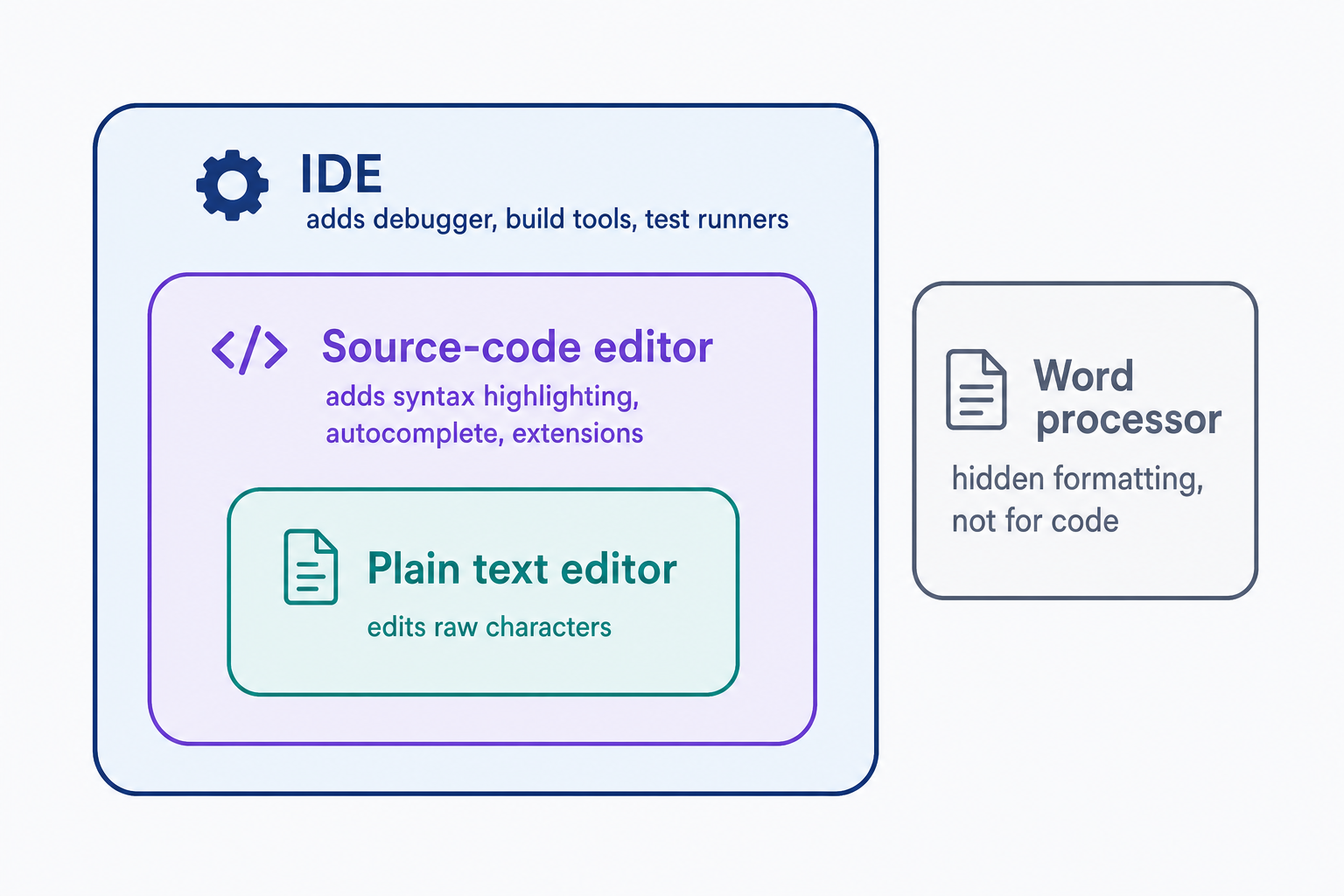
- A plain text editor (Notepad, Nano) edits text files with no hidden formatting. Every character you see is every character in the file, which is why code and configuration files such as wp-config.php and .htaccess belong here.
- A source-code editor (Notepad++, Visual Studio Code, Sublime Text) is a text editor with programmer features added: syntax highlighting, autocomplete, and extensions.
- An IDE (integrated development environment), such as Visual Studio or PhpStorm, bundles a code editor with a debugger, build tools, and test runners in one program.
- A word processor (Word, Google Docs) stores hidden formatting, and its smart quotes silently replace the straight quotes code requires.
Use a plain text editor for a quick plain-text change, a code editor for day-to-day work on code, and an IDE when you need integrated debugging, builds, or tests. Never edit a site file in a word processor. If a configuration file fails right after an edit, check the quotes first.
When to use the text editor in WordPress
Stay in the visual editor for everyday writing; it’s a WYSIWYG editor, so you see formatting as you apply it. Switch to the text or code editor when the job is the markup itself: pasting an embed code, fixing broken HTML, or adding an attribute the toolbar has no button for. If only one block needs custom code, the Custom HTML block handles it without switching the whole post to markup.
A worked example: adding a nofollow attribute
Say you want a link marked rel="nofollow", which asks search engines not to treat it as an endorsement. Google has treated nofollow as a hint rather than a strict directive since September 2019, and for crawling and indexing since March 1, 2020, so expect it to withhold ranking credit without guaranteeing it. For paid links, Google now prefers rel="sponsored", though nofollow remains acceptable.
The visual toolbar can create the link, but it has no control for rel attributes. Open the Code editor, find the link, and change:
<a href="https://example.com/">Example</a>
to:
<a href="https://example.com/" rel="nofollow">Example</a>
Switch back to the visual editor and preview the post. The link looks exactly as it did before; the attribute now lives in the markup.
When hand-edited markup breaks
In the block editor, each block’s markup has to match what WordPress expects. When an edit breaks that match, the block shows “This block contains unexpected or invalid content.” Click Attempt Block Recovery and WordPress rebuilds the block from your markup; the warning also has a three-dot menu with more options.
In the Classic Editor, switching from Text back to Visual can strip or rewrite custom HTML. Add raw markup as your last step before publishing, and keep a copy of it until you’ve previewed the result.
Frequently Asked Questions
- In practice, yes. The block editor, the default since WordPress 5.0 (December 2018), calls its plain-text mode the Code editor and shows your HTML plus the wp: comments that mark each block. Text tab is the Classic Editor’s name for it, and that editor now requires a plugin.
- Yes. Select the block, click the three dots in its toolbar, and choose Edit as HTML. Only that block turns to markup; the rest stays visual. Click Edit visually to switch back. If you change the markup heavily, the editor may no longer recognize the block.
- Scope. The Code editor exposes the whole post as markup; the Custom HTML block holds raw code inside one block. Since WordPress 7.0 (May 20, 2026) the block offers HTML, CSS, and JavaScript panels with a preview; the CSS and JavaScript panels need the unfiltered_html permission.
- Not really. Adobe Dreamweaver pairs a code view with a WYSIWYG design view, making it a web development suite, not a plain text editor. It’s been in maintenance since late 2021; Adobe’s April 2026 update is version 21.8. A free code editor like VS Code covers the same job.
Powerful WordPress Hosting
Reliable, lightning-fast hosting solutions specifically optimized for WordPress. Find the perfect plan for you by clicking below.
WordPress Hosting Plans