What is a Pingback in WordPress?
A pingback is an automatic notification WordPress sends to a compatible website when you publish a post linking to it. A receiving WordPress site verifies that the source link exists, then handles the pingback like a comment. Non-WordPress software can also implement the protocol. Unlike a manual trackback, a pingback contains no excerpt.
More about pingbacks
WordPress can send and receive pingbacks out of the box. When another pingback-enabled site links to one of your posts, the notification arrives on your site and is handled like any other comment: depending on your moderation settings, a link to the post that mentioned you either appears on the page right away or waits for your approval.
Pingbacks exist to alert a site that you’ve linked to it, like an acknowledgement at the end of an academic paper. They’re built into the CMS, so there’s nothing to install.
How a pingback works
The exchange is automatic from start to finish. Here’s the sequence, from the WordPress.org documentation (last updated July 20, 2025):
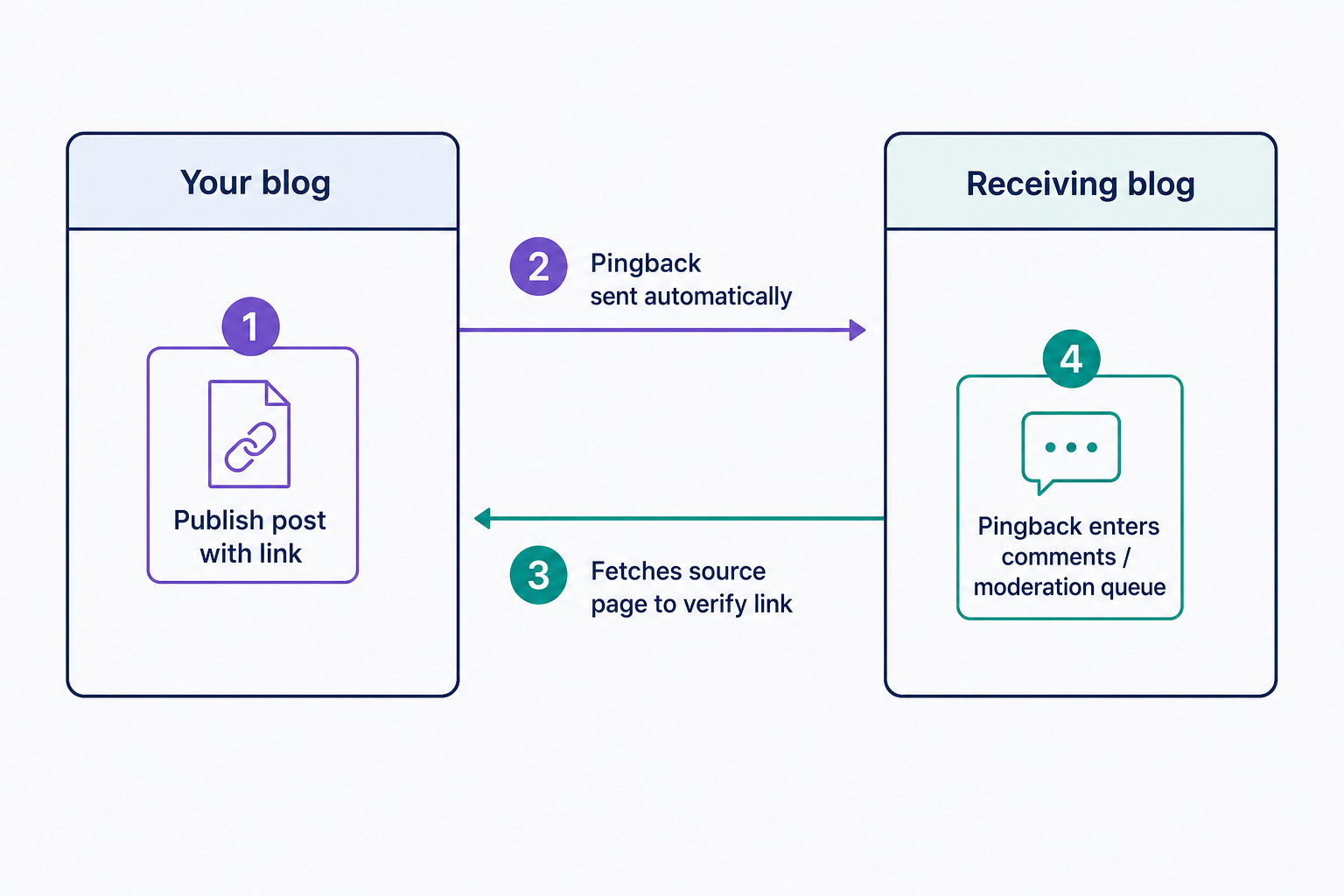
- You publish a post that links to a post on another pingback-enabled blog.
- Your site sends a pingback to that blog on its own. No excerpt travels with it, just the link.
- The receiving blog visits your post to confirm the link really exists at the source.
- The verified pingback joins that blog’s comments, where it’s published or held for moderation like any other comment.
Whether it shows publicly right away depends on the receiving site’s settings. If comments there require approval, the pingback waits in the moderation queue; if not, it appears once the link check passes. To review every pingback on your own site before it goes live, require manual comment approval under Settings → Discussion.
Pingback vs. trackback
The difference comes down to automation:
- Pingbacks are sent automatically when you publish, carry no content excerpt, and are verified by the receiving site.
- A trackback is created manually (the Send Trackbacks box, available only in the Classic Editor), sends a short excerpt of your post, and isn’t verified.
In practice, you rarely need trackbacks anymore. If you link to a WordPress blog, the pingback goes out with no extra action from you.
Turning pingbacks on or off
WordPress keeps two separate switches under Settings → Discussion: one controls outgoing notifications (whether your site pings the blogs you link to when you publish), and the other controls incoming ones (whether other blogs can send pingbacks and trackbacks to your posts). Both ship on by default: WordPress core’s install defaults still set them that way as of WordPress 7.0 (checked July 2026), though some hosts and one-click installers apply their own presets.
Here’s the catch: those switches only set the default for new posts. Posts you’ve already published keep the setting they were created with. To turn pingbacks off on existing posts, bulk-edit them from the Posts screen (select the posts, open the bulk Edit action, and disallow pings), or use the Discussion panel in the editor for a single post. Pingbacks you’ve already approved stay visible until you delete them like any other comment.
One more scope limit: unchecking boxes doesn’t remove the pingback machinery itself. WordPress’s XML-RPC interface (xmlrpc.php) still answers pingback requests, so if you’re disabling pingbacks for security, switch off the XML-RPC pingback method too, with a security plugin or a small code filter.
Pingback spam and self-pingbacks
Spam is the big failure mode. Because an approved pingback creates a public link, spammers fire fake pingbacks at any post that ranks, and each one lands in your moderation queue as comment spam. An anti-spam plugin catches most of it; our guide to blocking spam with Akismet covers the setup.
The other annoyance is the self-pingback: link to one of your own older posts with the full URL, and WordPress pings itself. Write the link as a relative URL instead (/old-post/ rather than https://example.com/old-post/), or install a plugin that suppresses self-pings.
As for search value, backlinks are still a Google ranking signal, but a modest one: Google’s Gary Illyes said in September 2023 that links are no longer a top-3 factor. So make the call on the notifications, not the SEO. Keep pingbacks on and review each one if you want to know when other blogs link to you. If that’s not worth the spam patrol, uncheck both Discussion defaults and bulk-edit older posts to match.
Frequently Asked Questions
- Not meaningfully. Since WordPress 5.3 (November 2019), links in comments carry rel="nofollow ugc" by default, so an approved pingback passes little or no ranking credit. Treat pingbacks as a linking notification, not a link-building tactic.
- Pingbacks travel over WordPress's XML-RPC interface (xmlrpc.php), which attackers have abused: in March 2014, Sucuri documented more than 162,000 legitimate WordPress sites relaying a DDoS attack through pingback requests. To close that route, disable the XML-RPC pingback method with a security plugin; the Discussion checkboxes alone don't.
- Yes, with any software that implements the open pingback specification, though WordPress is its main user today. Webmention, the IndieWeb successor, became a W3C Recommendation on January 12, 2017, and does the same job with plainer web technology. WordPress supports it through a plugin.
- Pingbacks only arrive when the linking site sends one, and in practice that means another pingback-enabled WordPress blog. Most news sites and social networks don't send them. To find more backlinks than pingbacks reveal, check the Links report in Google Search Console, but don't treat it as a complete list.
Powerful WordPress Hosting
Reliable, lightning-fast hosting solutions specifically optimized for WordPress. Find the perfect plan for you by clicking below.
WordPress Hosting Plans