What Is 2FA (Two-Factor Authentication)?
Two-factor authentication (2FA) is a login security method that requires exactly two different types of proof — such as a password (something you know) plus a one-time code from a phone (something you have). 2FA is a form of multi-factor authentication (MFA), which requires at least two distinct authentication factors and may use more than two.
More About 2FA
Turning on 2FA is the single most effective step against account takeover. Microsoft, which tracks more than 300 million fraudulent sign-in attempts to its cloud services every day, reported in August 2019 that multi-factor authentication blocks over 99.9% of account-compromise attacks. With 2FA enabled, a password that has been stolen, phished, or reused from a breached site no longer gets an attacker in.
The three types of authentication factors
2FA works only when the two proofs come from two different factor categories. Security standards recognize exactly three:
- Something you know (knowledge): a password, PIN, or passphrase.
- Something you have (possession): a phone running an authenticator app, a hardware security key, or a smart card.
- Something you are (inherence): a fingerprint, face, or voice.
Location and device signals can feed a provider's background risk checks, but they're supplementary signals, not authentication factors, and they never count toward the two.
Common 2FA methods, from weakest to strongest
Second factors aren't equally strong. NIST's digital identity guidelines (SP 800-63B) draw hard lines between them:
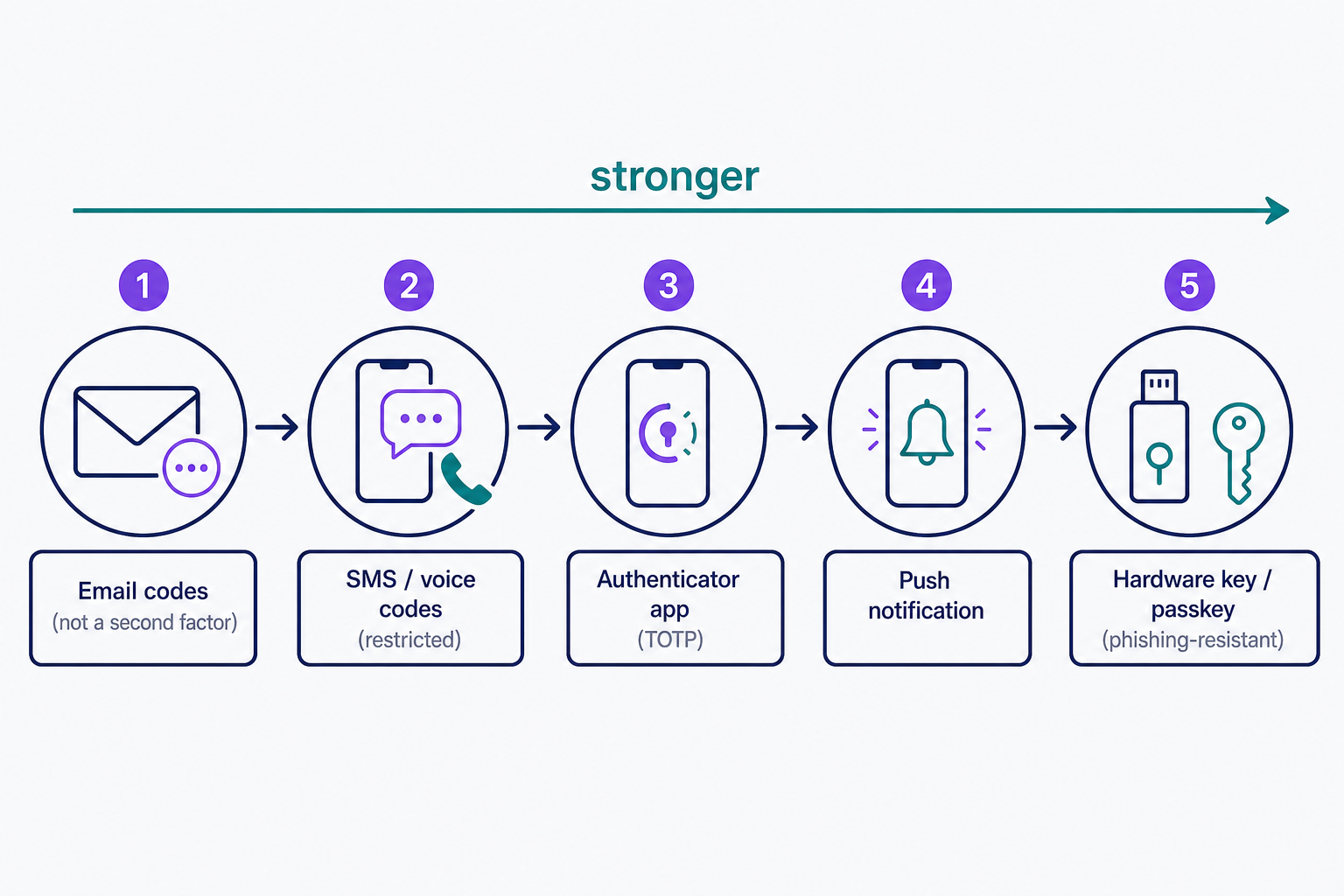
- Email codes: not a genuine second factor. The guidelines state that email "SHALL NOT be used for out-of-band authentication" because an inbox can usually be opened with just another password.
- SMS and voice codes: one-time codes sent to your phone, usually expiring within minutes. Classified as "restricted" because phone numbers can be hijacked through SIM swapping.
- Authenticator apps (TOTP): rotating codes generated on the device itself, typically every 30 seconds. Nothing crosses the phone network.
- Push notifications: an approve-or-deny prompt sent to a device you're already signed in on.
- Hardware security keys and passkeys: physical or device-bound credentials built on FIDO2/WebAuthn — the only widely available phishing-resistant option.
The decision rule: use an authenticator app or a hardware key wherever a service offers one, keep SMS as a fallback only, and don't count emailed codes as a second factor at all.
2FA vs. MFA
The difference is one number. 2FA requires exactly two factors from different categories; multi-factor authentication (MFA) is the umbrella term for methods that require at least two distinct factors and may use more than two. All 2FA is MFA, but not all MFA is 2FA.
- 2FA: exactly two factors — a password plus a one-time app code, for example.
- MFA: at least two distinct factors, and possibly more — a high-security system might stack a password, a hardware key, and a fingerprint.
- Not 2FA: two challenges from the same category. A password plus a security question is two prompts but one factor type — both are things you know.
How attackers get around 2FA
2FA raises the cost of an attack; it doesn't make one impossible. Three bypasses cause most real-world incidents, and each has a fix:
- SIM swapping: an attacker convinces a carrier to move your number onto their SIM and receives your SMS codes. Fix: switch that account to an authenticator app or hardware key.
- Real-time phishing: a fake login page relays your password and one-time code to the real site as you type them. Fix: FIDO2/WebAuthn keys and passkeys are bound to the genuine domain, so there's no code to steal.
- MFA fatigue (push bombing): attackers who already have your password fire off push prompts until you approve one just to stop the noise. Fix: never approve a prompt you didn't initiate, and move that account to app codes or a phishing-resistant hardware key.
If a service offers a phishing-resistant option, take it — especially on your email account, which can reset every other password you own.
How to enable 2FA
For your own accounts, 2FA lives in the security settings: choose a method, scan the QR code with an authenticator app, and save the backup codes somewhere that isn't your phone. That last step is what keeps a lost device from becoming a lockout. For a WordPress site, add 2FA at the login with a security plugin; it's a core step in hardening a WordPress site. DreamHost also supports multifactor authentication for logins to its control panel.
Many services still leave 2FA as an opt-in setting, but major platforms increasingly require it. GitHub, for example, has required two-factor authentication for all developers who contribute code on GitHub.com since its rollout began on March 13, 2023.
Frequently Asked Questions
- Use the backup codes you saved at enrollment, or a second registered method such as a hardware key. Without either, you'll need to verify your identity with the provider — for a DreamHost panel lockout, that means contacting support. Store backup codes somewhere that isn't your phone.
- Usually not. Authenticator apps are generally free, and SMS codes cost users nothing beyond any carrier message rates (site owners pay gateway fees to send them). Hardware security keys are the only common purchase — a one-time cost that varies by features and protocol support.
- Gradually. Passkeys — built on the FIDO2/WebAuthn standards ratified in 2018 — replace the password-plus-code pattern with a single phishing-resistant credential, and major platforms already support them. Wherever passkeys aren't offered, keep 2FA or another registered sign-in or recovery method active as a fallback.
Web Hosting
Our Web Hosting plans offer a user-friendly interface and flexible options to fit your needs, with a 30-Day Money-Back Guarantee.
Web Hosting Plans